 Supplier Nudge
Guide
Approved supplier list template for food plants: the columns to keep
An approved supplier list template for food plants, with the columns, a renewal-date formula and a weekly routine that keeps every supplier document in date.
An approved supplier list is the one page your purchasing team, your receiving dock and your auditor all use: who you are allowed to buy from, for what, and whether their paperwork is current. Most food plants keep it in a spreadsheet, and for a lot of plants that is a sensible choice.
The trouble is that most lists answer "is this supplier approved?" and stop there. The question that causes audit findings is "which supplier document expires next, and has anyone asked for the new one?" This template answers both. It works in Excel or Google Sheets.
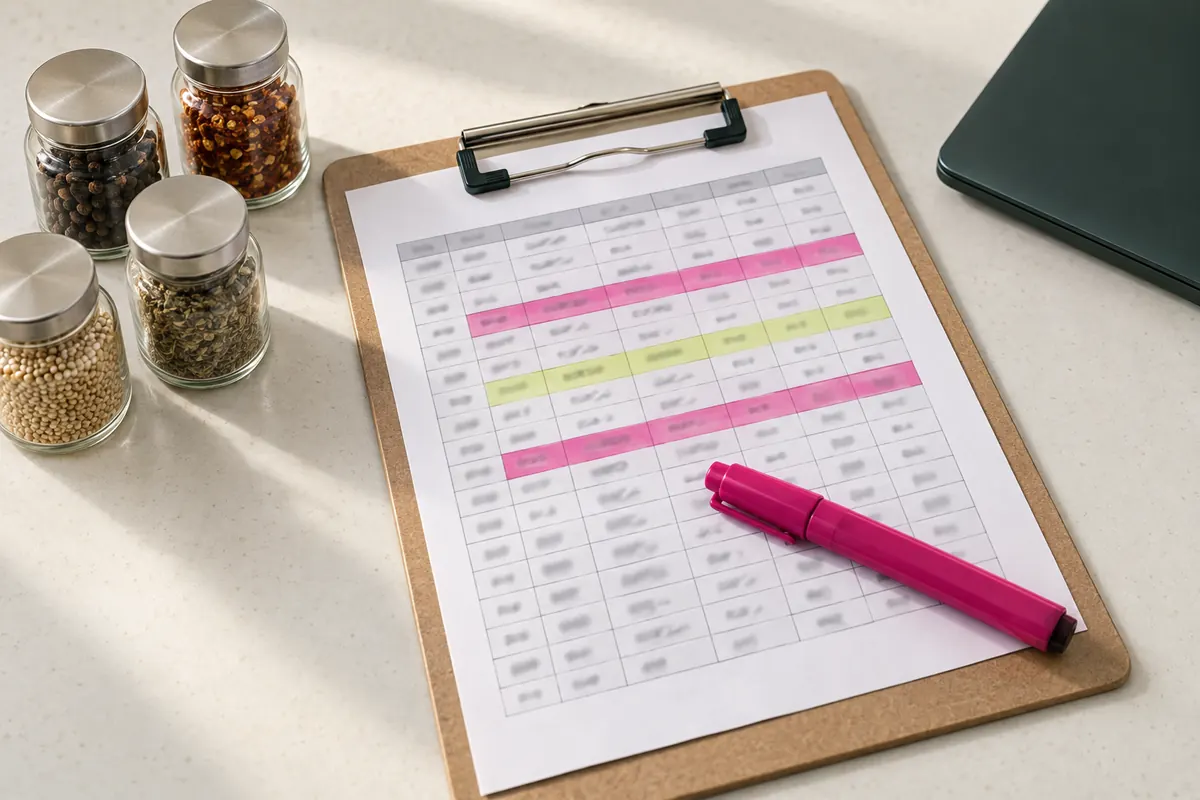
Two tabs, not one
Keep two tabs that share a supplier name:
- Suppliers: one row per approved supplier. This is the approved supplier list proper, the page purchasing and receiving check.
- Documents: one row per document per supplier. This is where the dates live, and where you work from each week.
Putting documents on their own rows is the decision that makes the sheet work. A supplier with a GFSI certificate, a letter of guarantee, an allergen statement and a specification sheet has four documents renewing on four different dates. One row per supplier with one "expiry" column will always hide three of them.
The Suppliers tab
| Column | What goes in it |
|---|---|
| Supplier | Legal name, as it appears on their certificates |
| Status | Approved, conditional, suspended or inactive |
| Risk tier | Standard or low risk, per your program |
| Materials or services | What you buy from them: "wheat flour, sesame seeds" |
| Site | The manufacturing site that makes what you buy, if not the head office |
| Primary contact | The person who sends documents, usually in their quality team |
| Second contact | Someone to copy when the first goes quiet |
| Approved on | Date of approval |
| Next review | When your program says to review the supplier as a whole |
| Notes | Exceptions, conditions, reasons for the tier |
The status column is what receiving checks. A supplier marked suspended should not be accepted at the dock, so keep that column honest.
The Documents tab
| Column | What goes in it | Why it is there |
|---|---|---|
| Supplier | Same name as the Suppliers tab | Links the two tabs |
| Document | GFSI certificate, letter of guarantee, allergen statement, spec sheet, COI | One row each |
| Scheme or issuer | SQF, BRCGS, FSSC 22000; the certification body | Lets you check scope and authenticity |
| Issue date | From the document | Needed for undated documents |
| Expiry date | Printed expiry, if any | The renewal date when present |
| Interval (months) | Your program's interval for undated documents | 12 for a letter of guarantee, for example |
| Renewal date | Formula, below | The one date you sort by |
| Days left | Formula, below | Drives the colors |
| Last requested | When you last asked the supplier | Stops you asking twice, or never |
| File | Link to the PDF | So the audit pack is one click away |
Two formulas
Renewal date: the printed expiry date when there is one, otherwise the issue date plus the interval. In Excel or Google Sheets, with issue date in D, expiry date in E and interval in F:
=IF(E2<>"", E2, EDATE(D2, F2))
Days left:
=G2-TODAY()
Then add conditional formatting on the days-left column: red at 0 or below, amber up to 60, green above. Sort the tab by days left, smallest first, and the top of the sheet is your to-do list.
The weekly routine
Fifteen minutes, same day every week:
- Sort by days left. Everything red has lapsed; everything amber is due within 60 days.
- Request what is due. Email each supplier with an amber or red row that you have not asked in the last week, listing every document they owe in one message, and fill in "last requested".
- File what came in. For each new document, check the supplier name, site, scope and dates, link the file, and update the dates. Keep the old file in an archive folder rather than overwriting it.
- Escalate the stuck ones. A supplier who has ignored several weekly requests goes to purchasing or gets a phone call.
- Check new suppliers. Anyone added since last week has every row its tier requires, even if the row says "missing".
A month before an audit, filter for red and amber rows and clear them first.
Where a spreadsheet stops working
The sheet does not send anything. Every reminder is an email somebody remembers to write, and the weekly routine is the first thing dropped in a busy week. The sheet also cannot tell you a supplier uploaded the wrong site's certificate, and gathering current files for an audit means opening dozens of links.
Supplier Nudge keeps this list for you. Each supplier gets one upload link listing exactly what is missing or expiring; it reads expiry and issue dates from the certificates they upload, works out renewal dates for undated documents from the intervals you set, and emails the supplier at 60, 30, 14 and 7 days before each renewal date, then weekly for up to eight weeks. You can bring your current list in as CSV, see one red, amber and green list of every supplier, and download an audit pack: a ZIP of current documents and the register.
Every supplier document current before your next audit, without chasing anyone yourself
Supplier Nudge sends each supplier one upload link listing what is missing, reads the expiry dates, and emails them at 60, 30, 14 and 7 days, then weekly for up to eight weeks after expiry.
$129/ month
Get startedCancel any time.